Cloud Drive Mapping Tool (CDMT) - Map cloud storage as a native local drive
The new Cloud Drive Mapping Tool is a major upgrade to the previous WebDAV Drive Mapping Tool.
It can map cloud storage as a native local drive, which has much better compatibility than a WebDAV drive.
It supports granular access control and cloud file locking for efficient and secure team collaboration.
Overview
A mapped cloud drive gives you a familiar way to access cloud-based files from Windows File Explorer.
The new Cloud Drive Mapping Tool no longer relies on WebDAV. It can map cloud storage as a native local drive,
which is more compatible with Microsoft Office and other desktop applications than a WebDAV drive.
The tool makes it extremely easy to map a cloud drive. Moreover, it uses
advanced caching, monitoring and cloud file locking technologies to make the solution more efficient and reliable than other
drive mapping services.
New Improvements
- Maps cloud storage as a native local drive for improved compatibility with Microsoft Office and other desktop apps.
The new tool does not use the WebDAV protocol.
- Improved drive health monitoring that can automatically reconnect cloud drives if disconnected.
- Cloud-based file preview feature that can efficiently preview many file types.
- Works with long file and folder paths. Windows File Explorer and some applications impose path-length limits;
the tool can support longer paths.
Feature Highlights
- Map cloud storage as a native local drive instantly. Directly edit cloud files as if they are local.
- Upload and download files and folders with drag and drop.
- Attach files from a mapped drive in Outlook or save Outlook attachments to it.
- Map multiple cloud drives with different access permissions.
- Support cloud file locking for group collaboration.
- Share folders with users and groups, and set granular permissions.
- Support groups and subgroups; can efficiently support organizations with more than 10,000 employees.
- Advanced file and folder caching that brings performance nearly on par with local drives.
- Transparently compress data to increase the upload and download speed.
- Transfer very large files, up to 100 GB.
- Display file transfer list with very detailed progress information.
- Built-in event logging and trouble shooting features.
- Pre-configured cloud drives: Configure cloud drives for subusers to map automatically.
- Support Active Directory integration, single sign-on (SSO), and two-factor authentication (2FA).
More Information
The new Cloud Drive Mapping Tool is available for 64-bit Windows.
For 32-bit or older versions of Windows, please download the WebDAV Drive Mapping Tool.
Release Date: Nov 08, 2026
Version: Version 7.0.2.2337
Download
64-bit
System: Win 10,11 & Servers
Size: 27 MB
Cloud Drive Mapping Tool Feature Summary and Screenshots
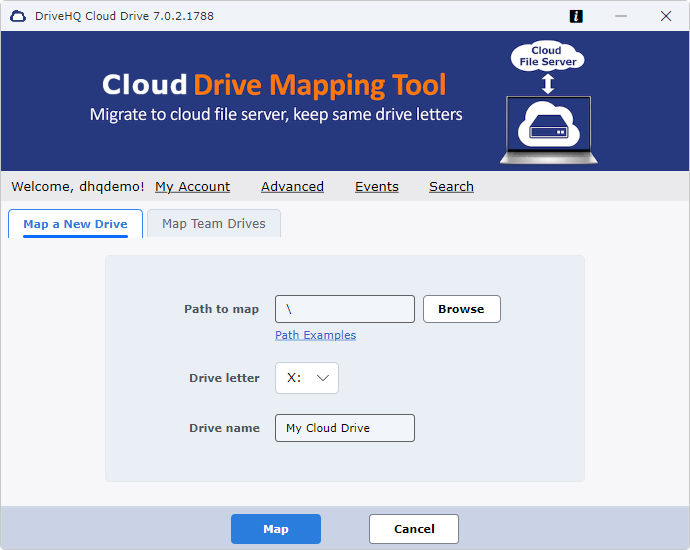
To map a cloud drive with DriveHQ Cloud Drive Mapping Tool (CDMT), just log in to the CDMT software,
then click "Map" to map a cloud drive. You can also type in a cloud folder path and select a drive letter to map it.
Multiple users can map the same shared folder as a cloud drive to share files and collaborate.
If you are a group owner, you can pre-configure different cloud drives for your sub-users or subgroups.
When a sub-user logs in to the CDMT, it will automatically map the cloud drives based on your configuration.
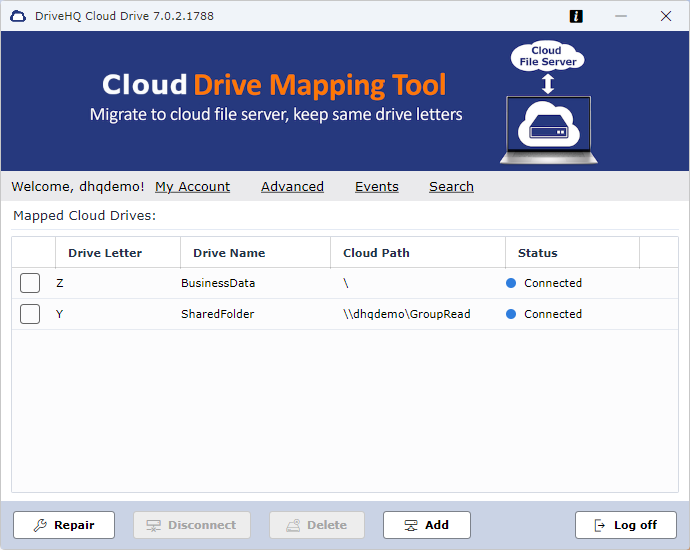
A user can map multiple cloud drives. Below is the screenshot showing the cloud drive list in CDMT. You can disconnect a
mapped cloud drive, or map another drive.
A WebDAV-based cloud drive is treated as a network drive by the Windows OS, which can cause some compatibility issues.
For example, File Explorer on Windows 11 will not display file previews for many file types.
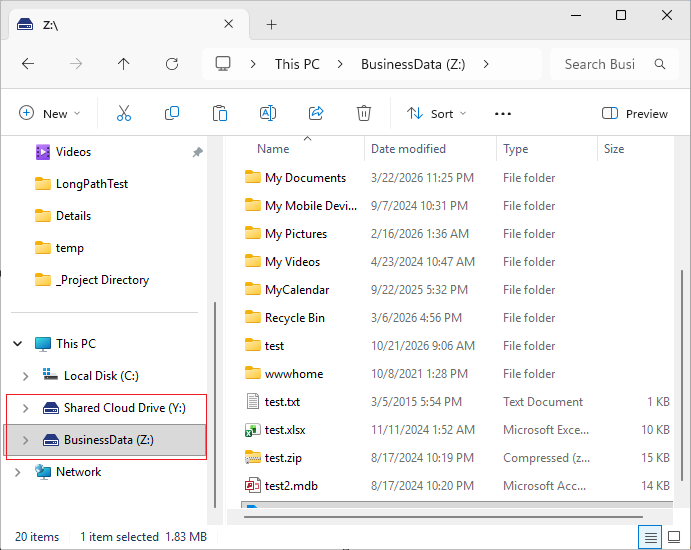
With CDMT, your mapped cloud drive works just like a local drive, and Windows treats it as a local drive.
This allows Windows to display file previews without triggering security warnings.
Below is the screenshot showing two mapped cloud drives in Windows File Explorer.
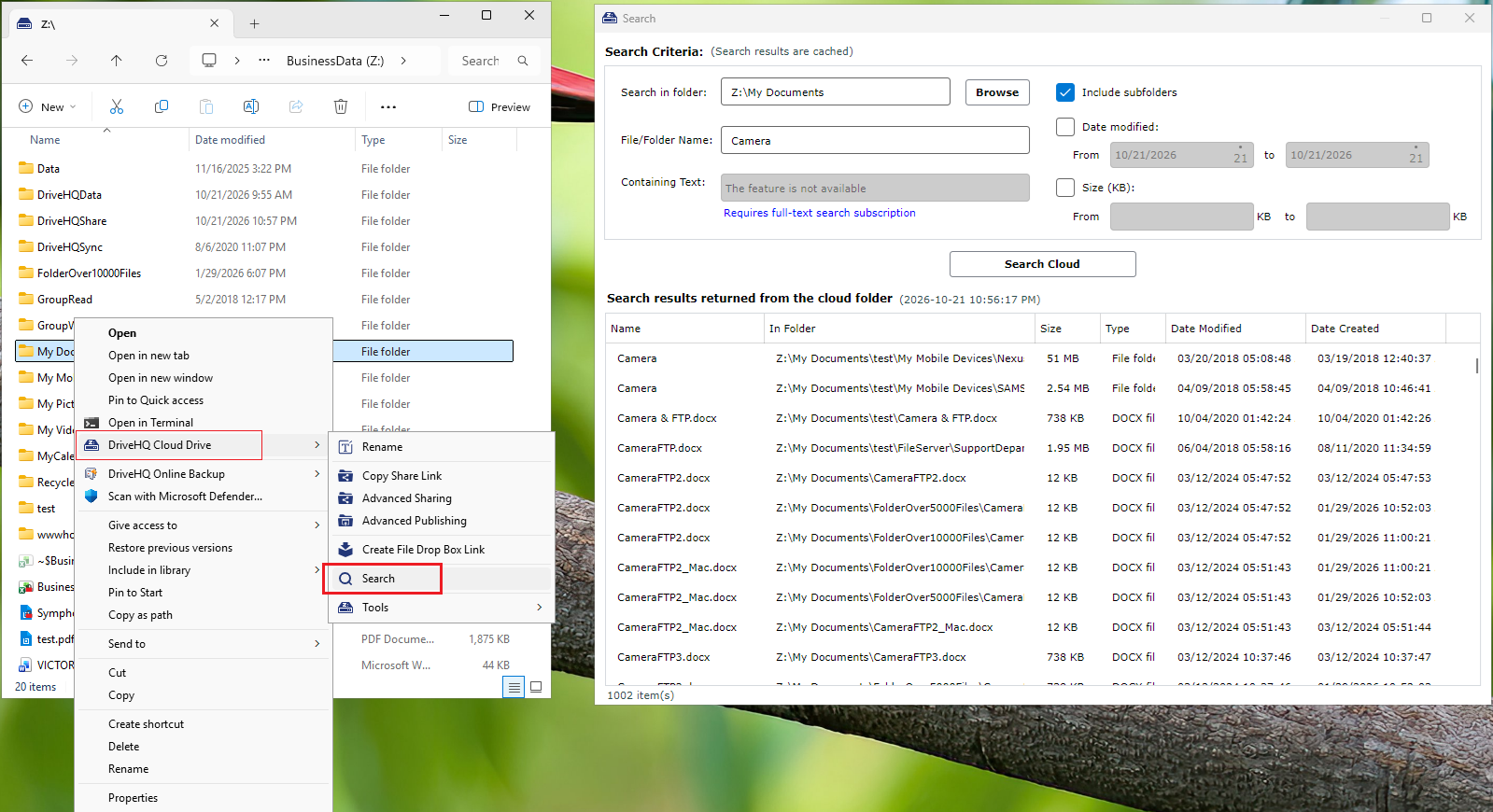
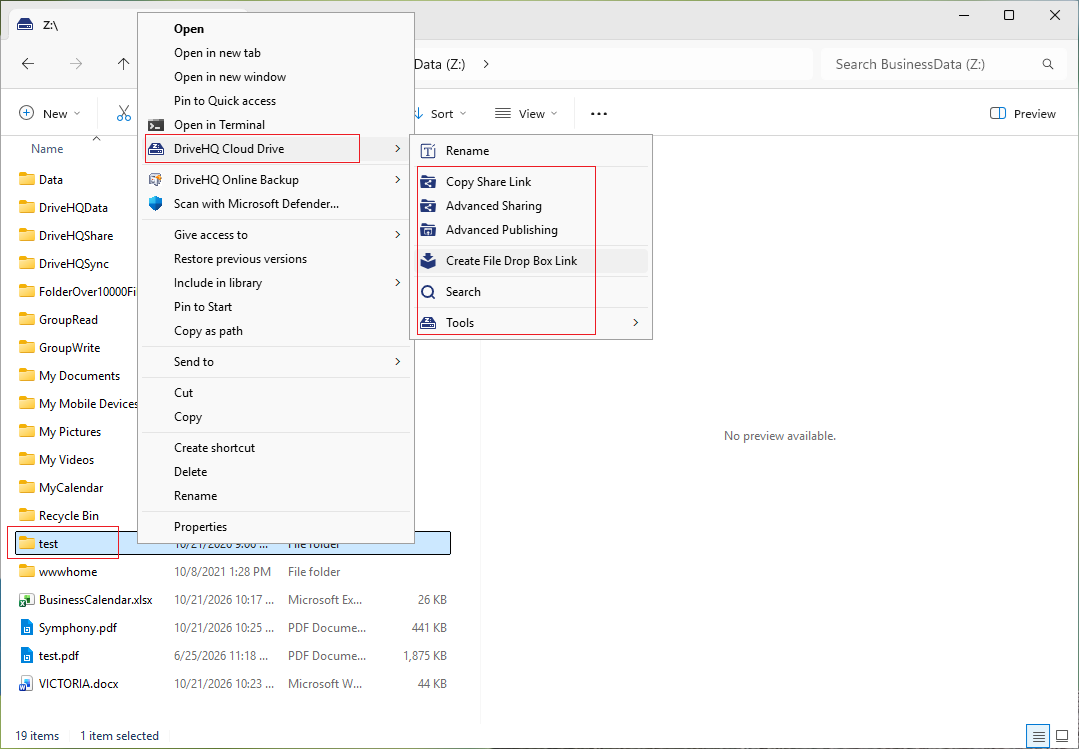
You can access many DriveHQ cloud features by right-clicking a cloud file or folder.
It will display a context menu as shown in the following screenshot. It includes the following features:
Sharing or publishing the selected file/folder; advanced sharing and publishing; creating a file drop box folder for receiving files;
manually locking or unlocking a file, etc.
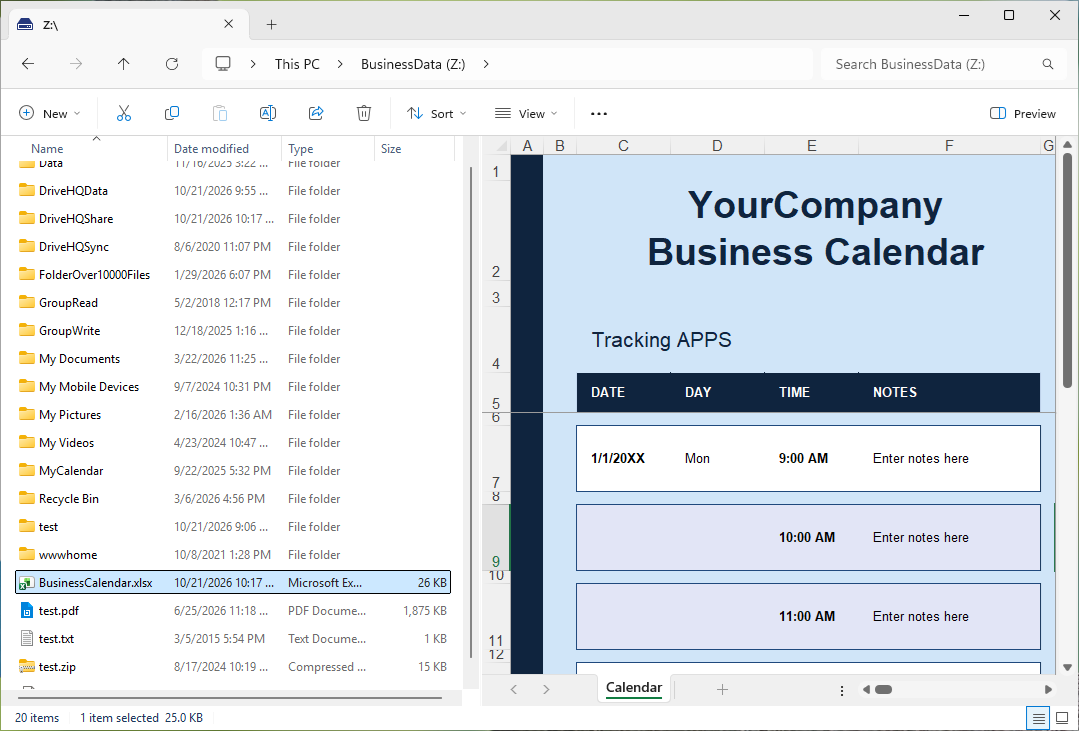
By default, Windows 11 File Explorer does not display file previews for files stored on a WebDAV-based cloud drive.
This is because Windows 11 treats it as a network drive and applies strict security restrictions.
But the new CDMT is not based on the WebDAV protocol. Windows will not treat it as a network drive.
Please see the screenshot below showing that File Explorer can display previews of cloud files on a drive mapped with CDMT.
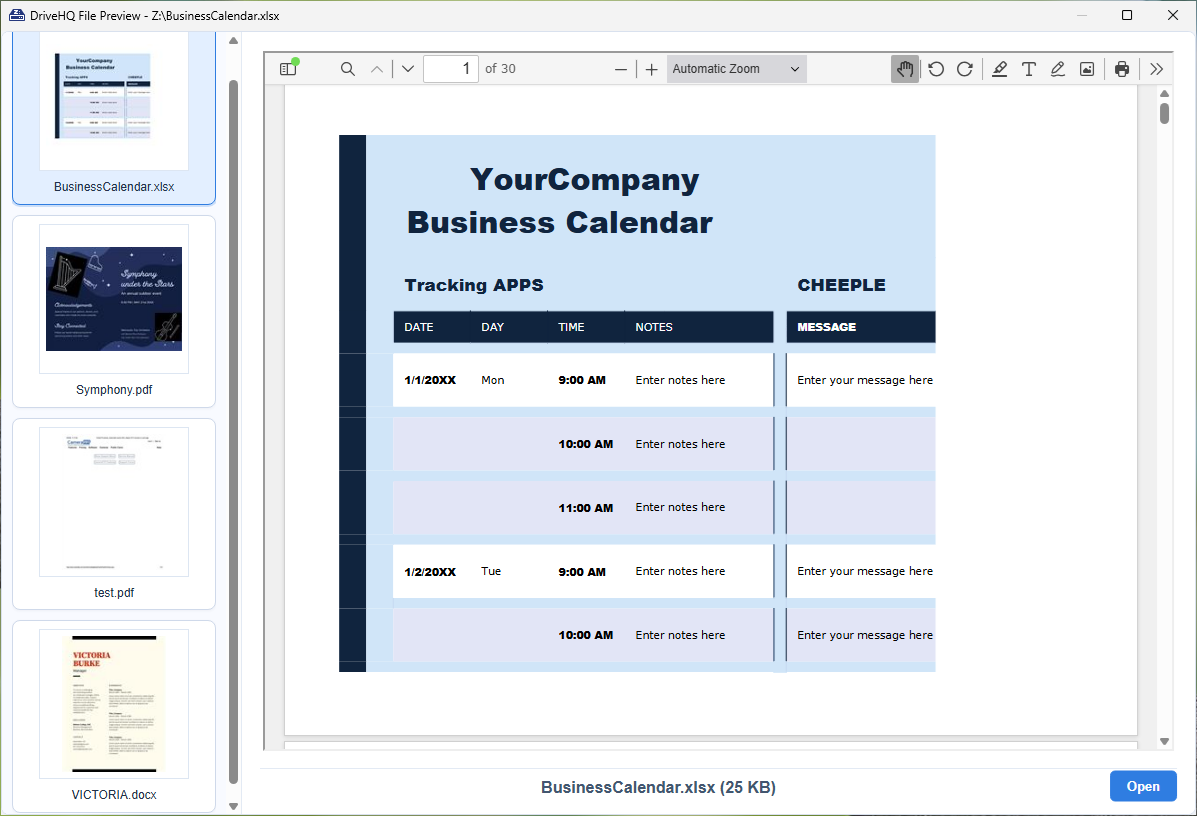
DriveHQ offers a more powerful and efficient cloud file preview feature.
To preview a file, simply select it in your cloud drive and press the SPACE bar.
Alternatively, right-click the file and select DriveHQ Cloud Drive -> Fast Preview (Press SPACE) to open the preview window.
This feature supports more file types than Windows File Explorer's built-in preview functionality.
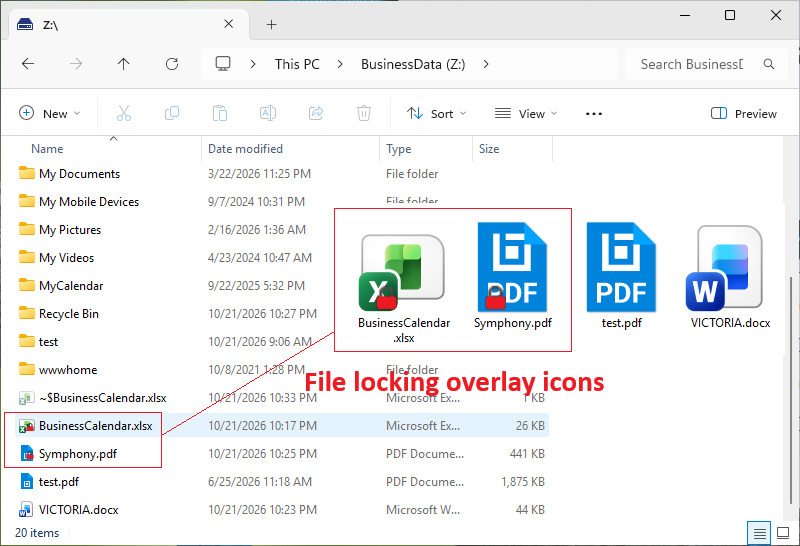
DriveHQ CDMT supports file locking, an important feature for sharing files and collaborating with others.
It helps prevent multiple users from modifying the same file at the same time.
When a file is locked, a small lock icon appears over the file's regular icon.
Files are typically locked and unlocked automatically, so users don't need to unlock them manually.
The screenshot below shows two locked files. If needed, you can right-click a file and lock/unlock it manually.
To see who has locked a file, visit the "Manage Locked Files" page. You can also manually unlock a file from this page.
You can quickly and efficiently search for files in your cloud folder by file name, size, or modification time.
Full-text search is also supported, allowing you to find files based on their content or keywords.
Please see the screenshot below.